
Dynamic DNS for UniFi: set up DDNS on UniFi, FRITZ!Box and FortiGate
Updated
On this page
- Static IP, dynamic IP and CGNAT
- Important: DDNS does not solve CGNAT
- Example: Starlink
- Alternatives when you are behind CGNAT
- Choose a DDNS provider
- UniFi Cloud Gateway and UniFi Gateway
- AVM FRITZ!Box
- MyFRITZ! or DynDNS?
- Set up DynDNS
- Fortinet FortiGate
- FortiGuard DDNS switch in DNS Settings
- Dynamic DNS table (FortiOS 7.4 and 7.6 Administration Guide)
- Zyxel
- How to verify that Dynamic DNS is working
- Using DDNS with Sosto Labs Captive Portal
- Summary
- Sources and further reading
Sosto Labs Captive Portal is a hosted service: to authorize guests, our server connects to your UniFi console over the Internet, through a port forwarding rule on your router or firewall. That only works if the connection has a public IPv4 address that the service can find.
If your ISP gives you a static public IP, you can use it directly. If the address changes from time to time, a Dynamic DNS (DDNS) hostname keeps pointing to the current address, so you never have to update the site settings by hand. This guide shows how to set up DDNS on the device that manages your Internet connection: UniFi Cloud Gateways and UniFi Gateways, AVM FRITZ!Box, Fortinet FortiGate and, from Zyxel’s official guides, Zyxel firewalls.
Static IP, dynamic IP and CGNAT
Three situations are common. Only the first two allow inbound connections to your network.
Connection | What it means | What to use |
|---|---|---|
Static public IP | The public IPv4 address assigned to your connection does not change. | The IP address, or preferably a DNS hostname that points to it. |
Dynamic public IP | The address is public and reachable, but the ISP can change it, for example after a reconnection. | A DDNS hostname, updated automatically by your router or firewall. |
CGNAT | Your router receives a private or shared address. The public IPv4 address belongs to the ISP and is shared by many customers. | DDNS alone does not help: see the next section. |
With DDNS, the router or firewall tells the DDNS provider its WAN address whenever the address changes, and the provider updates the hostname. A connection from the Internet then follows this path:
unifi.example.com → current public IP → router/firewall (port forwarding) → UniFi consoleImportant: DDNS does not solve CGNAT
With Carrier-Grade NAT (CGNAT), the ISP translates the addresses of many customers to a few public IPv4 addresses. The DDNS hostname may update correctly, but it points to an address of the ISP, and the ISP does not forward incoming connections to your router. A UniFi console behind CGNAT is therefore not reachable from the Internet over IPv4, with or without DDNS.
To find out, compare the WAN address shown by your router with the address reported by a “what is my IP” website. If they differ, or if the WAN address is in 100.64.0.0/10 (shared address space, RFC 6598) or in a private range (10.0.0.0/8, 172.16.0.0/12, 192.168.0.0/16, RFC 1918), your connection is behind CGNAT or another NAT. Ubiquiti’s own DDNS article lists the same ranges as the ones where DDNS cannot work.
Example: Starlink
According to Starlink’s support pages, the default IPv4 configuration uses CGNAT with addresses from 100.64.0.0/10 and does not allow inbound traffic. A public IPv4 option is available to Local Priority and Global Priority customers. It is not a static address: Starlink keeps it with a reservation system, but relocating the dish or a software update can change it. With that option, DDNS is still recommended.
Alternatives when you are behind CGNAT
Ask your ISP for a public IPv4 address. It does not have to be static: a dynamic public address with DDNS is enough.
VPN or tunnel to a host with a public IPv4 address, for example a server in a data centre that forwards the port through the tunnel to your network.
IPv6 can make devices reachable without NAT, but only if every part of the path supports it. Sosto Labs Captive Portal connects to the UniFi console over IPv4 only, so IPv6 is not an option for it.
Cloudflare Tunnel: a
cloudflareddaemon inside your network opens an outbound connection to Cloudflare, and Cloudflare publishes a hostname for it without inbound ports. Traffic to that hostname goes through Cloudflare’s proxy. Whether this fits a given service depends on how the service connects: Cloudflare Tunnel is not a documented configuration for Sosto Labs Captive Portal.
More on CGNAT and Starlink: Dynamic IP, DDNS and CGNAT: making your UniFi console reachable.
Choose a DDNS provider
Which providers you can use depends on your router or firewall. Some devices offer a list of predefined providers. Others accept a custom update URL, which works with most providers that publish one. Some manufacturers also run their own service, such as MyFRITZ! for FRITZ!Box or FortiGuard DDNS for FortiGate.
Widely used providers include No-IP, DuckDNS, Dynu and Dyn. If your domain’s DNS is hosted by Cloudflare, you can update a record through the Cloudflare API: some devices, including UniFi gateways, support it directly. Before you create an account, check that your device supports the provider and whether it needs a username and password or a token.
UniFi Cloud Gateway and UniFi Gateway
On UniFi gateways, DDNS is set per WAN in the UniFi Network application. The steps and screenshots refer to UniFi Network 10.5.67. Menu names and layout can change between UniFi Network versions.
In UniFi Network, open Settings (the gear icon at the bottom left) → Internet.
Click the WAN that receives the inbound connections, for example Internet 1 on WAN1. The WAN settings open in a panel on the right.
In the Advanced section, find Dynamic DNS and click Create New. In the screenshot, Advanced is set to Manual.
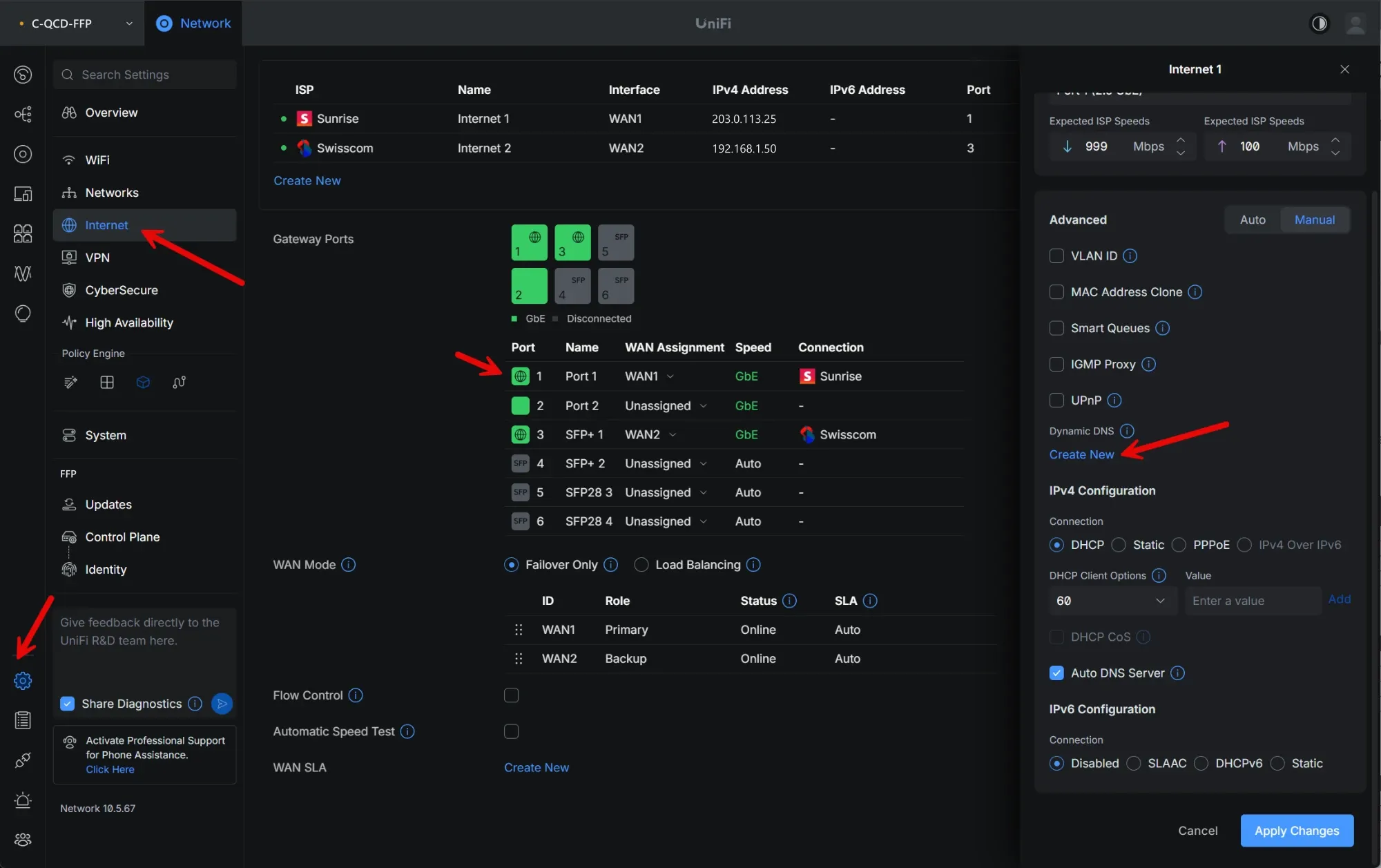
Figure 1 – Settings → Internet → WAN: the Dynamic DNS entry in the Advanced section.
In the Dynamic DNS window, fill in the fields:
Service: your DDNS provider, or Custom.
Hostname: the full hostname, for example
unifi.example.com.Username and Password: the credentials or token required by the provider.
Server: only needed for some providers. Leave it empty unless your provider tells you otherwise.
Click Create, then Apply Changes in the WAN panel.
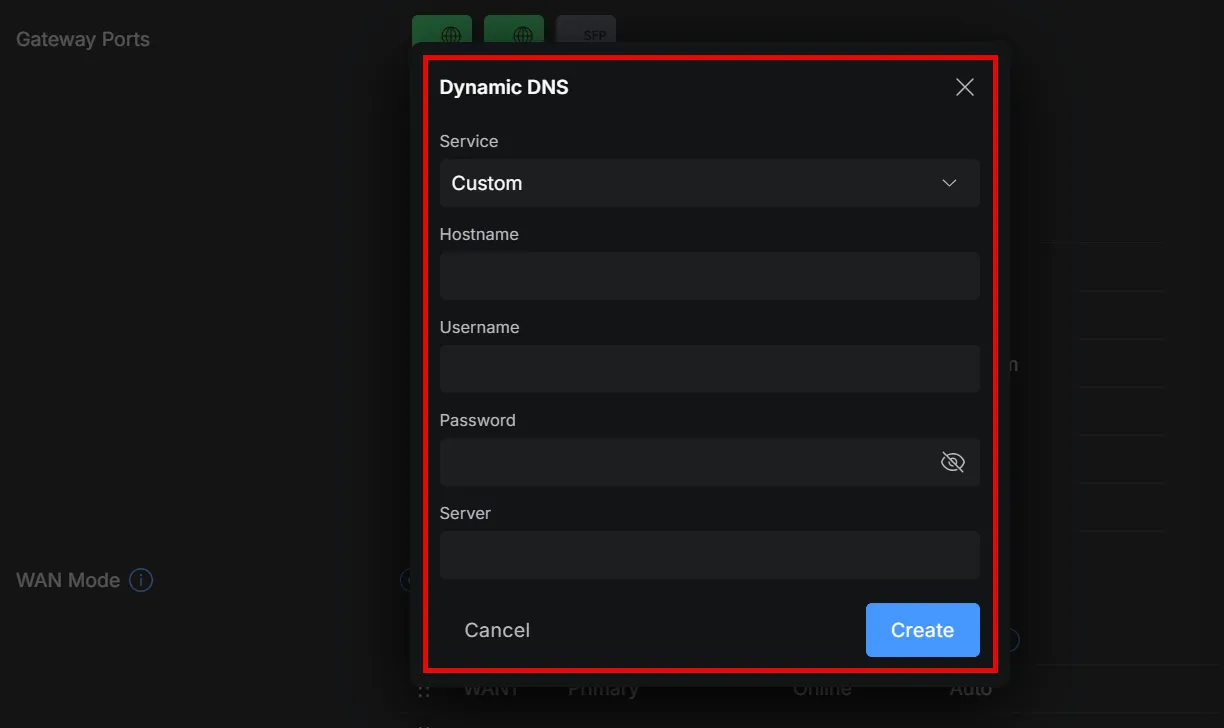
Figure 2 – Dynamic DNS configuration in UniFi Network.
Ubiquiti lists these supported services: afraid, cloudflare, dnspark, dslreports, dyndns, easydns, namecheap, noip, sitelutions and zoneedit. Other providers may work but are not officially supported. The DDNS client is based on Inadyn, which is why the Server field follows Inadyn’s conventions.
AVM FRITZ!Box
MyFRITZ! or DynDNS?
A FRITZ!Box offers two different ways to get a hostname:
MyFRITZ! is AVM’s free service. Once you register the FRITZ!Box, it gets a MyFRITZ! address such as
xxxxxxxxxxxx.myfritz.net, and port sharings are reachable at that address plus the port. You do not choose the name, and access uses the same IP protocol as your Internet connection: on an IPv6-only or DS-Lite line, MyFRITZ! is reachable over IPv6 only.DynDNS updates a hostname at a provider of your choice, for example a name in your own domain.
Either can work as the hostname for Captive Portal, as long as the connection has a public IPv4 address. Use DynDNS if you want a name in your own domain.
Set up DynDNS
The steps and the screenshot refer to a FRITZ!Box 7682 with a recent FRITZ!OS. Menu names and layout can vary with the model and the FRITZ!OS version.
In the FRITZ!Box user interface, click Internet → Permit Access.
Open the DynDNS tab, next to Port Sharing and FRITZ!Box Services.
Tick Use DynDNS.
Enter the account information from your DynDNS provider:
Update URL: the update URL published by your provider (see below).
Domain name: the hostname, for example
unifi.example.com.Username and Password: your provider credentials or token.
Click Apply.
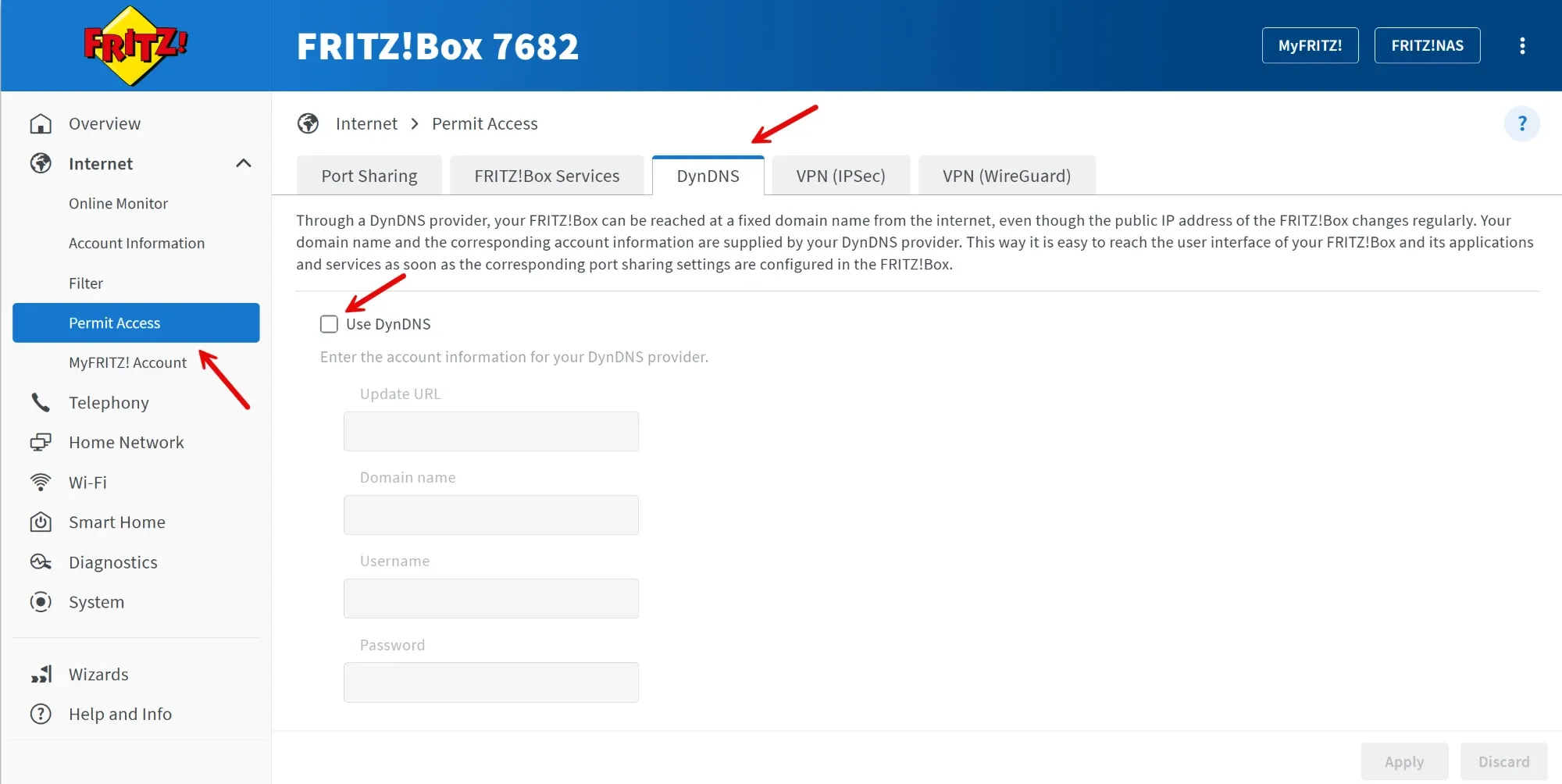
Figure 3 – Dynamic DNS settings in FRITZ!OS (FRITZ!Box 7682).
In the update URL, the FRITZ!Box replaces placeholders such as <domain>, <username>, <pass>, <ipaddr> and <ip6addr> with the current values. AVM’s knowledge base article lists ready-made update URLs for several providers, including DuckDNS, No-IP, Dyn and STRATO.
The port forwarding to the console is in the same menu: Internet → Permit Access → Port Sharing.
Fortinet FortiGate
On a FortiGate, DDNS is in Network → DNS. The layout of that page depends on the FortiOS version, so you may see one of the two variants below.
FortiGuard DDNS switch in DNS Settings
Figure 4 shows this layout. The FortiOS version is not visible in the screenshot.
Go to Network → DNS.
Under DNS servers, keep Use FortiGuard Servers selected: FortiGuard DDNS relies on FortiGuard DNS.
Turn on FortiGuard DDNS.
In Interface, select the WAN interface with the dynamic address, for example
wan1.Leave Use public IP address off if that interface receives the public address itself. Turn it on only if the FortiGate is behind another NAT device (see below).
Choose the Server (the FortiGuard domain, for example
fortiddns.com) and enter a Unique location. The resulting hostname appears under Domain, for examplemysite.fortiddns.com.Click Apply.
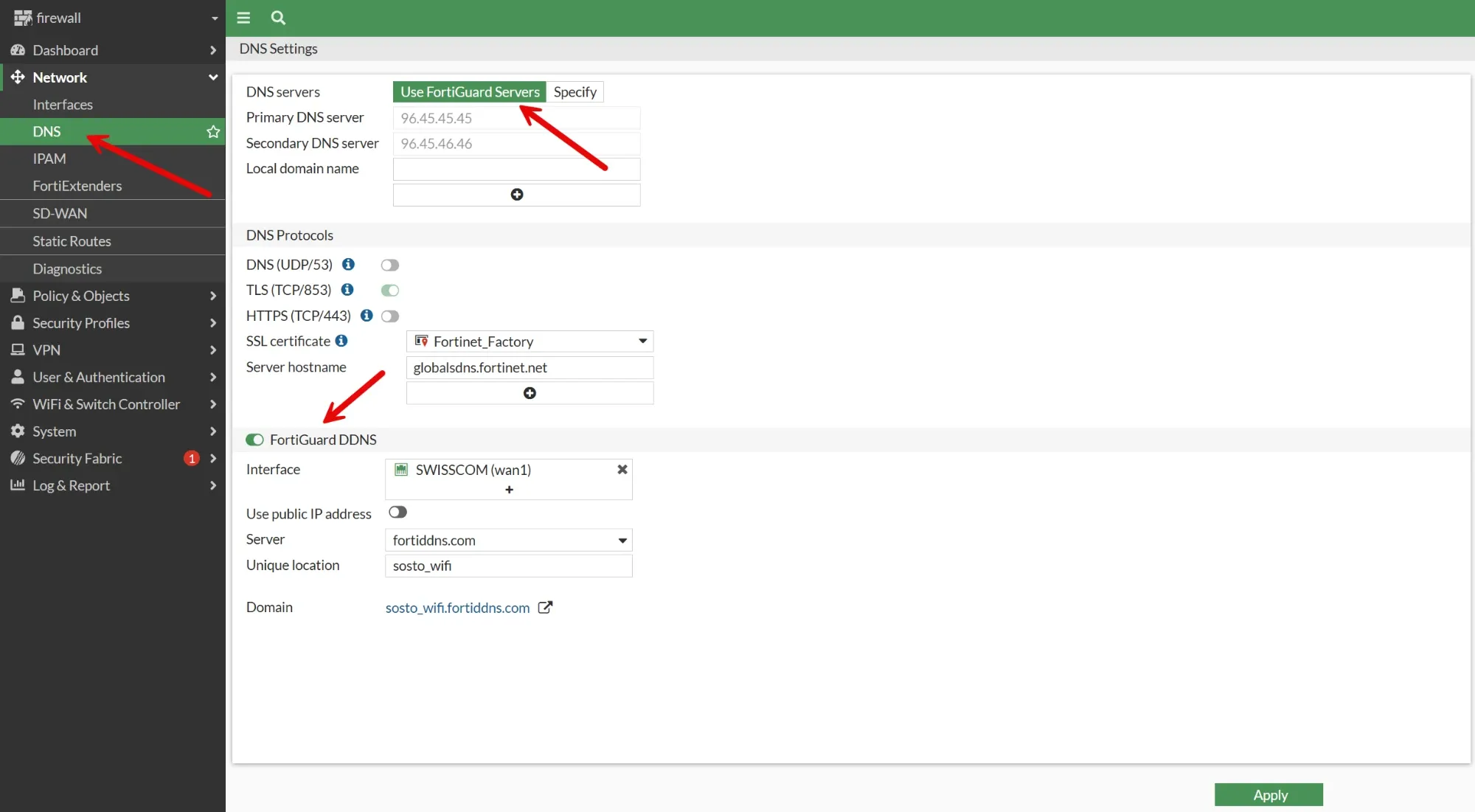
Figure 4 – Dynamic DNS configuration on FortiGate (FortiGuard DDNS).
Dynamic DNS table (FortiOS 7.4 and 7.6 Administration Guide)
Fortinet’s current Administration Guide describes a table that can hold several entries:
Go to Network → DNS.
In the Dynamic DNS table, click Create new. The New DDNS Entry pane opens.
Select the Interface, the Server and enter the Unique Location.
Click OK, then Apply.
FortiGuard DDNS offers the domains float-zone.com, fortiddns.com and fortidyndns.com. According to Fortinet, no licence or subscription is needed for the DDNS service.
Third-party providers and an RFC 2136 based genericDDNS option are configured in the CLI. Fortinet’s guide gives this template; the available commands vary depending on the selected server:
config system ddns
    edit <DDNS_ID>
        set monitor-interface <external_interface>
        set ddns-server <ddns_server_selection>
        set server-type {ipv4 | ipv6}
        set ddns-server-addr <address>
    next
end
If the FortiGate is behind another NAT device and its WAN interface does not have the public address, it cannot detect IP changes by itself. Turn on Use public IP address in the GUI, or use-public-ip in the CLI; update-interval sets how often it checks:
config system ddns
    edit 1
        set use-public-ip enable
        set update-interval <seconds>
    next
end
With update-interval set to 0, FortiGuard DDNS checks every 300 seconds, while third-party servers set their own interval.
Zyxel
Zyxel does not provide screenshots for this guide, so here are the paths from Zyxel’s official user guides. Menus and available providers depend on the model and the firmware.
USG FLEX H series (uOS): System → DNS & DDNS → DDNS. You can choose a predefined DDNS Type (DynDNS, Dynu, No-IP, Peanut Hull, 3322, Selfhost) or User custom for an update URL. Its Public IP option is meant for devices behind another NAT router.
ZLD firewalls (for example ATP, ZLD 5.x): Configuration → Network → DDNS.
Nebula security gateways: Site-wide → Configure → Security gateway → Interface addressing, section Dynamic DNS.
Zyxel also notes that you must have a public WAN IP address to use Dynamic DNS.
How to verify that Dynamic DNS is working
Look up the hostname from a computer:
nslookup unifi.example.comor
dig +short unifi.example.comCompare the result with the WAN address shown by the router or firewall and with the address reported by a “what is my IP” website. All three should match.
If the hostname still shows an old address, check the DDNS status on the device and wait a few minutes: DNS answers can be cached for the duration of the record’s TTL.
A correct DNS answer only proves that the name points to the right address. It does not prove that the port is reachable: port forwarding and firewall rules must be configured separately, and some ISPs block inbound connections. The final check is the connection test in Captive Portal (see below).
Using DDNS with Sosto Labs Captive Portal
When the UniFi console sits behind a dynamic public IP, a DDNS hostname lets Captive Portal follow address changes on its own. In the site settings, in the UniFi controller section, enter the hostname instead of the IP address in Host / IP, together with the external port of your port forwarding:
Instead of | Use |
|---|---|
|
|
Keep the port forwarding as described in Connect Captive Portal to your UniFi console: external port of your choice → internal IP of the console, port
443, source allowed:185.177.61.37only.If the console uses its own self-signed certificate, leave Verify TLS certificate unticked. The certificate does not contain your DDNS hostname, so the check would fail.
Click Save, then Run test in the Connection test panel.
If the test fails with a timeout, check that the hostname resolves to your current public IP, then the port forwarding and the allowed source IP. More checks in The login page does not open or the guest cannot browse.
Summary
With a dynamic public IP, set up DDNS on the gateway or firewall that manages the Internet connection, check that the hostname resolves to the current address, and enter the hostname in Captive Portal. DDNS does not open ports and does not work around CGNAT: for that you need a public IPv4 address from your ISP or a tunnel.
Sources and further reading
Ubiquiti: UniFi Gateway – Dynamic DNS
Ubiquiti: Setting Up Public Access to Local Resources in UniFi
Fortinet: FortiOS 7.6 Administration Guide – DDNS
Zyxel: Nebula Control Center – Security gateway configuration
Starlink: What IP address does Starlink provide?
Cloudflare: Cloudflare Tunnel, Dynamically update DNS records
IETF: RFC 6598 – Shared Address Space, RFC 1918 – Private Address Space
Frequently asked questions
Does UniFi support Dynamic DNS?
Yes. UniFi gateways have a built-in DDNS client: in UniFi Network go to Settings, Internet, select the WAN and create a Dynamic DNS entry. The gateway needs a public IP address for it to work.
Do I need a static IP for a UniFi external captive portal?
No. Sosto Labs Captive Portal needs to reach your UniFi console over a public IPv4 address, but a dynamic public address with a DDNS hostname is enough.
Can I use DDNS instead of a static IP?
Yes, if your connection has a public IPv4 address. The DDNS hostname follows the address when it changes, and you enter the hostname instead of the IP.
Does DDNS work behind CGNAT?
Not for inbound connections. The hostname would point to an ISP address that does not forward connections to your router. You need a public IPv4 address from your ISP or a tunnel.
Does DDNS automatically configure port forwarding?
No. DDNS only updates a DNS name. Port forwarding and firewall rules must be configured separately on the router or firewall.
Can I use DDNS with a FRITZ!Box?
Yes. Go to Internet, Permit Access, DynDNS tab and enter the update URL, domain name, username and password of your provider. Alternatively, use the MyFRITZ! address.
Does FortiGate support Dynamic DNS?
Yes. Go to Network, DNS: depending on the FortiOS version, turn on FortiGuard DDNS or create an entry in the Dynamic DNS table. FortiGuard DDNS needs no licence; third-party providers are configured in the CLI.
What happens if my ISP changes my public IP address?
With DDNS, the router updates the hostname within minutes and Captive Portal keeps working. Without DDNS, you have to enter the new IP address in the site settings yourself.