
Connect Mailchimp: send guest Wi‑Fi marketing contacts to your audience
Updated
On this page
With the Mailchimp integration, guests who give marketing consent on the portal reach your Mailchimp audience on their own, usually within a minute. Unsubscribes stay in sync both ways. The integration is included in every plan.
Who can set it up
Customer and portal administrators. The integration works per portal: each portal connects its own Mailchimp account, because the contacts belong to whoever offers the Wi‑Fi. Operators do not see this page; a reseller can set it up only on portals in their own name.
1. Create the API key in Mailchimp
In Mailchimp, open your profile, then Extras › API keys.
Create a new key and copy it. It has 32 characters, a dash and the data center, for example
…-us21.
2. Connect Mailchimp in the dashboard
Open Marketing › Settings and the Mailchimp tab.
Paste the key into API key, tick Send contacts with consent to Mailchimp and click Save and test. If the connection works, Connected appears and the summary shows your account name.
In Audience, choose the audience that receives the contacts and click Save.
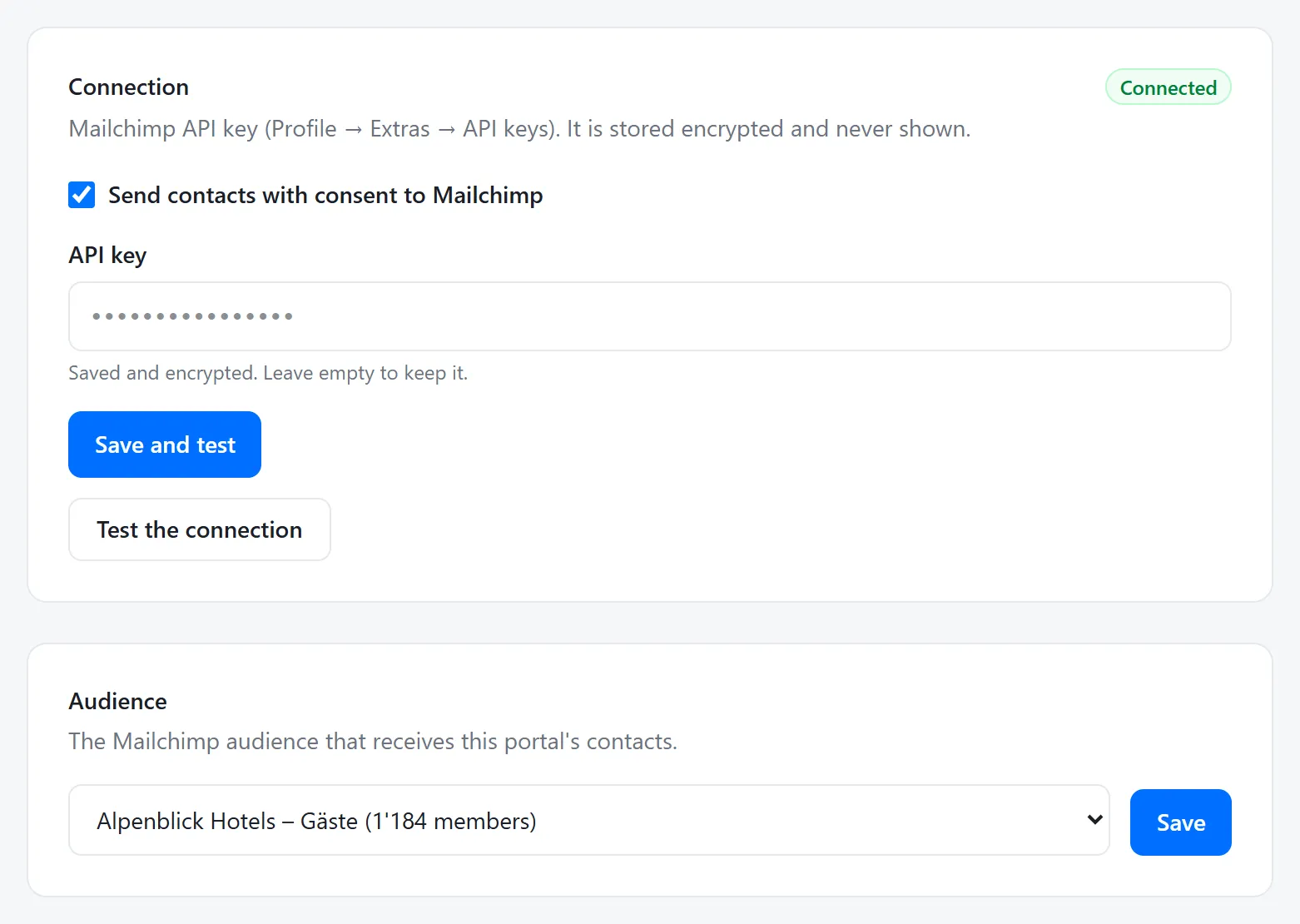
Connection and audience
3. Choose the fields
In Fields, decide where each detail goes. The e-mail is the member address and the consent sets the subscription status. First and last name only go to text fields of your audience, usually FNAME and LNAME, or you can choose Do not send. You can also add the site as a tag and send the guest’s language.
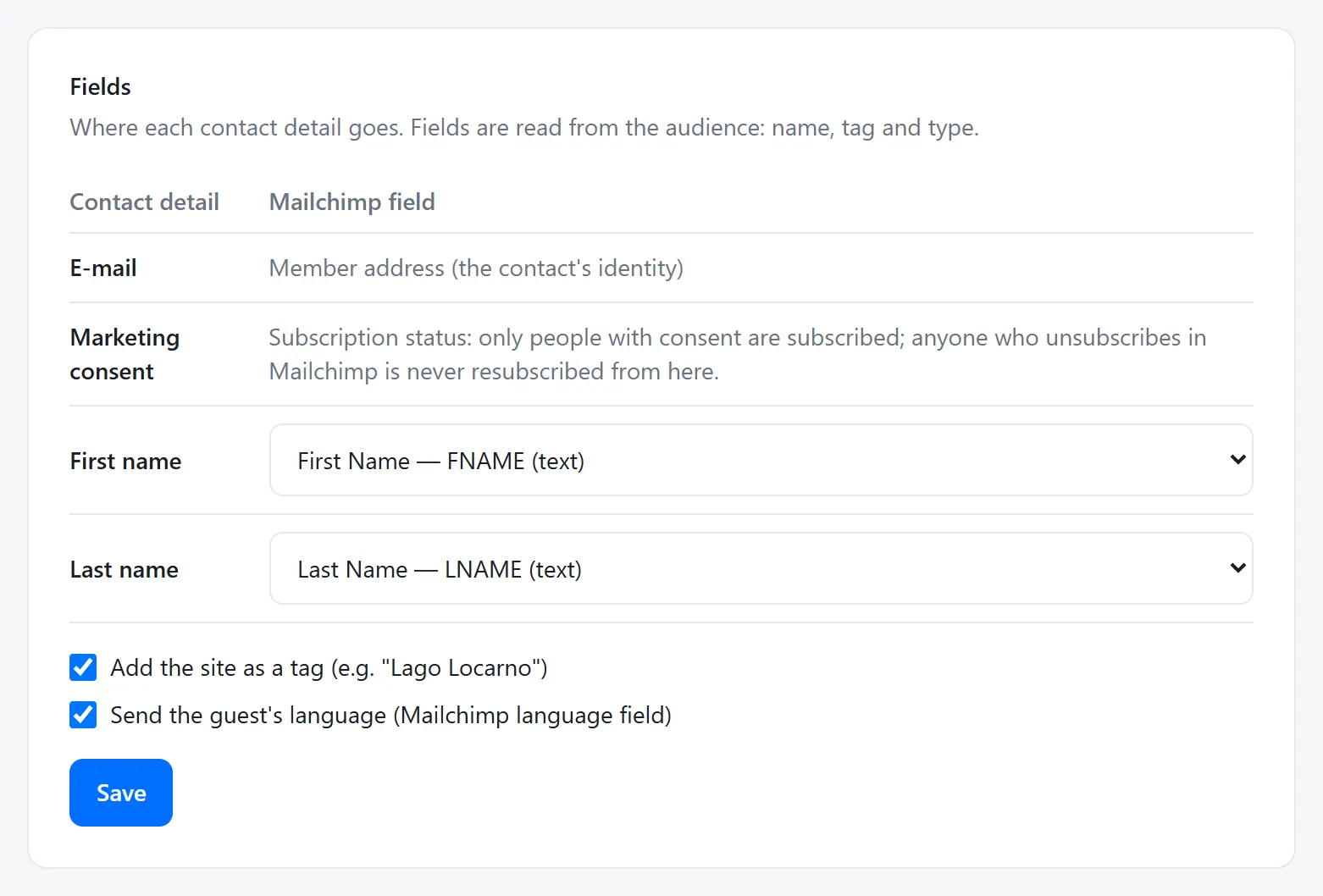
Fields
4. Enable updates from Mailchimp
Click Enable updates. When someone unsubscribes in Mailchimp or their address bounces, the portal knows at once, withdraws the consent and never subscribes them again. Mailchimp’s calls are signed and verified.
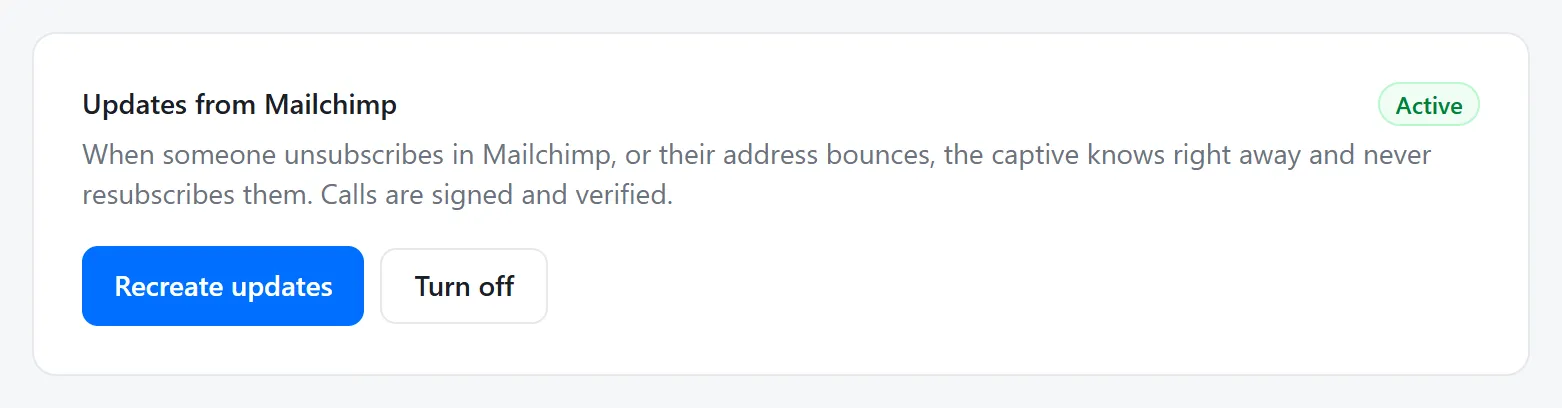
Updates from Mailchimp
5. Send the contacts you already have
New consents go out on their own. For those collected before you connected Mailchimp, the Contacts already collected box shows how many there are: click Synchronize existing contacts. With many contacts they go out in groups and the progress appears on the page.
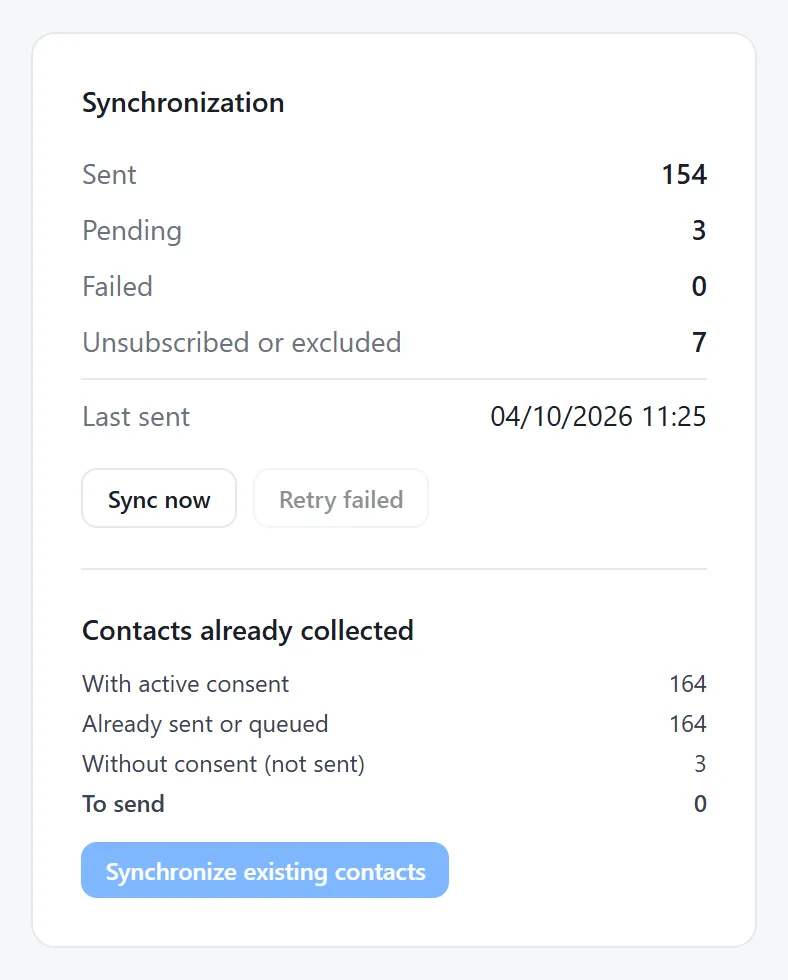
Synchronization
How the sync works
Only contacts with active consent are sent; new contacts are subscribed straight away.
The guest portal never waits for Mailchimp: sending happens in the background, usually within a minute.
A contact is sent again only when one of the sent details changes.
If Mailchimp does not respond, the portal retries after 1, 5, 15 and 60 minutes, then after 3 and 12 hours. If it still fails, the contact shows as Failed and you can use Retry failed.
The portal never changes the status of someone already in your audience: whoever unsubscribed in Mailchimp is not subscribed again. If a guest gives consent again after unsubscribing, Mailchimp asks them to confirm.
If you withdraw a consent in the portal, the contact is unsubscribed in Mailchimp. A privacy erasure request also deletes them permanently from Mailchimp.
Frequently asked questions
Do I have to export contacts by hand?
No. Every new contact with marketing consent reaches Mailchimp on its own, usually within a minute. The CSV export of contacts is still available.
What happens if a guest unsubscribes from the newsletter?
With updates from Mailchimp enabled, the portal withdraws their consent at once and never subscribes them again.
Is the Mailchimp integration included in my plan?
Yes, it is included in every plan.